Labels + Priority Labels using Product tags
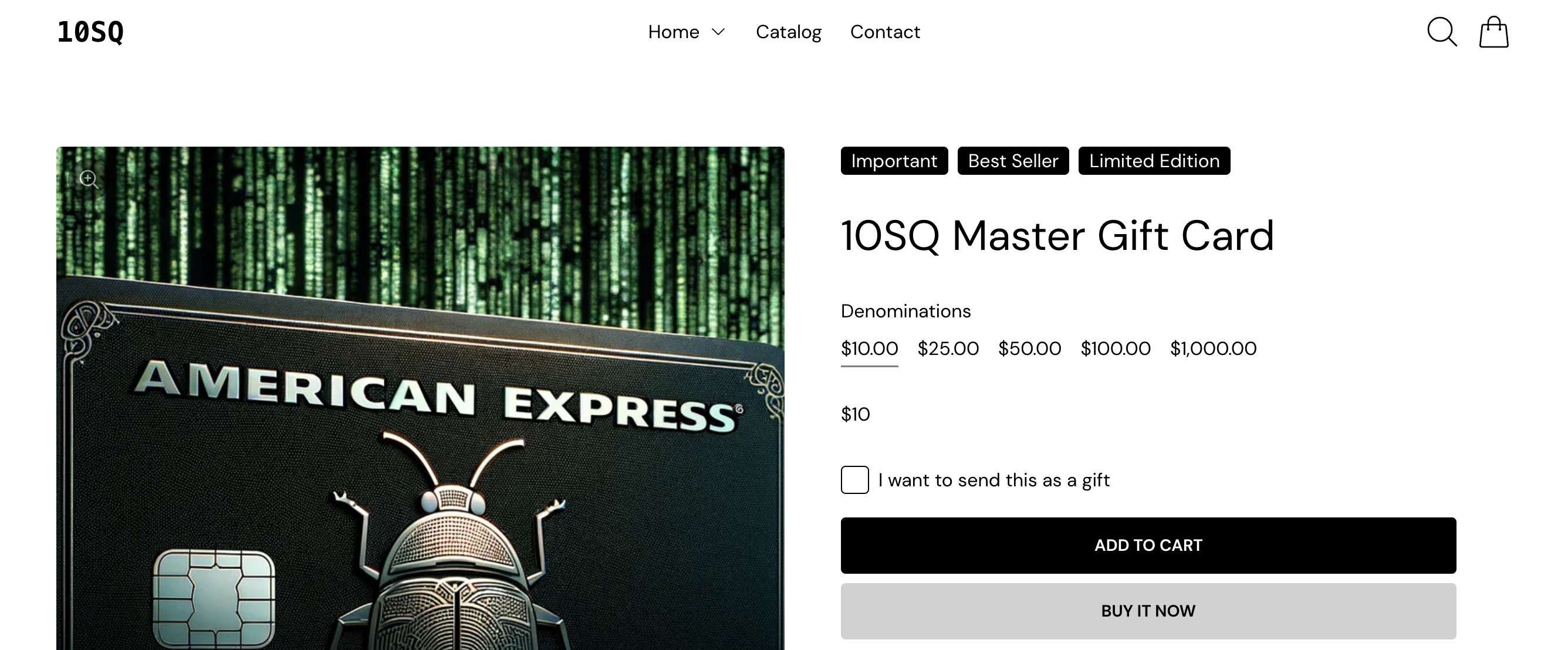
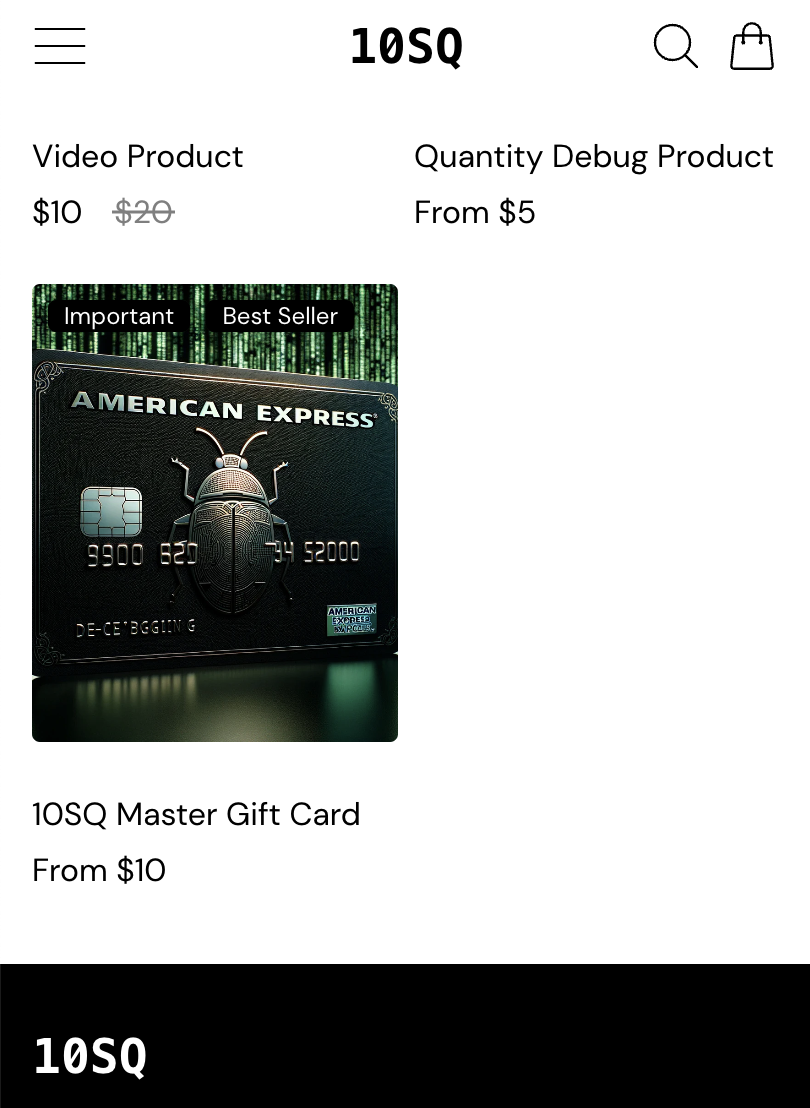
Labels on the product cards and product pages are shown using product tags.
 |
|---|
| Example of labels on a product page |
 |
|---|
| Example of labels on a product card |
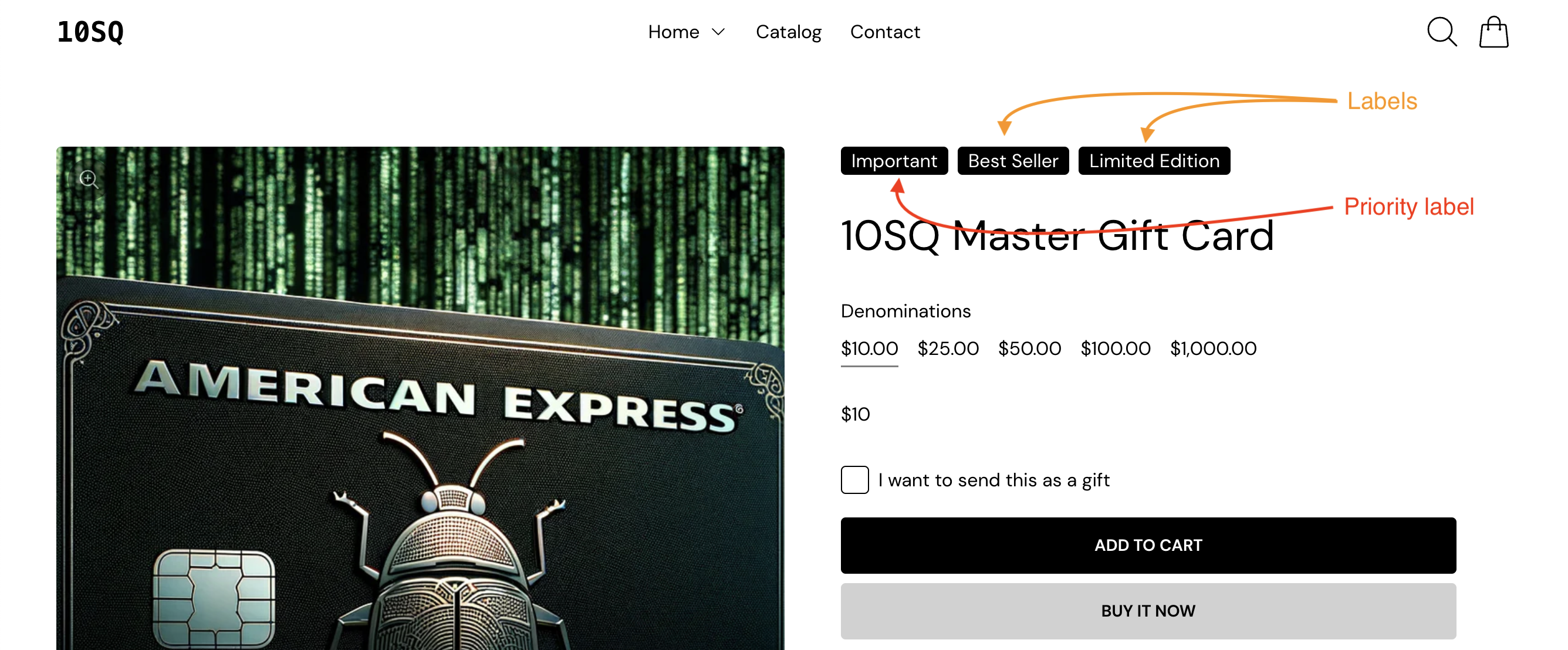
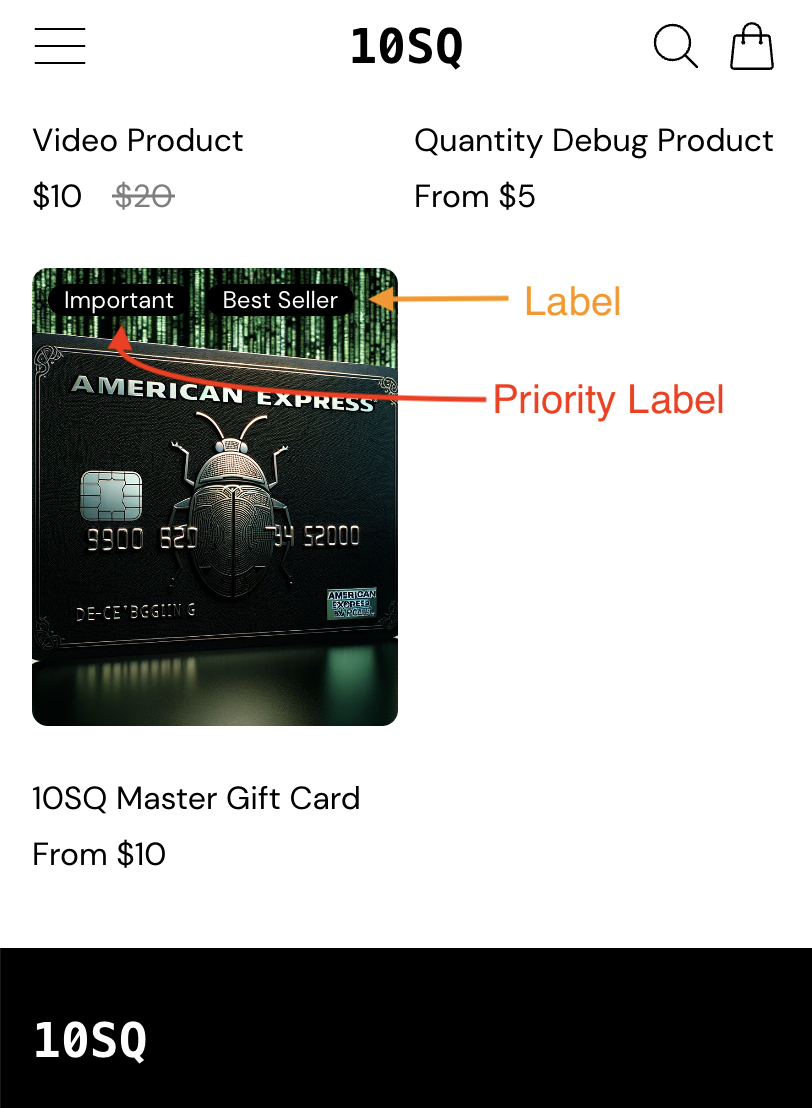
Two types of Labels
- Priority Labels (Red): Highlight urgent deals and features. They appear first.
- Regular Labels (Orange): Offer extra product information and follow Priority Labels.
Look for these labels to quickly spot deals and information!
| Product Page |
|---|
 |
| Product cards |
|---|
 |
How to Add Labels to Products
-
Choose a Product: Go to the 'Products' section in your Shopify admin.
-
Add Tags: Find the 'Tags' section on the product detail page.
-
Enter Your Tags:
- For a Regular Label, enter
label:Your Label(replace "Your Label" with the label you want). - For a Priority Label, enter
priority-label:Your Important Label(replace "Your Important Label" with the important label you want).
Make sure to use a colon
:to separate the label type from its value.Example product tags 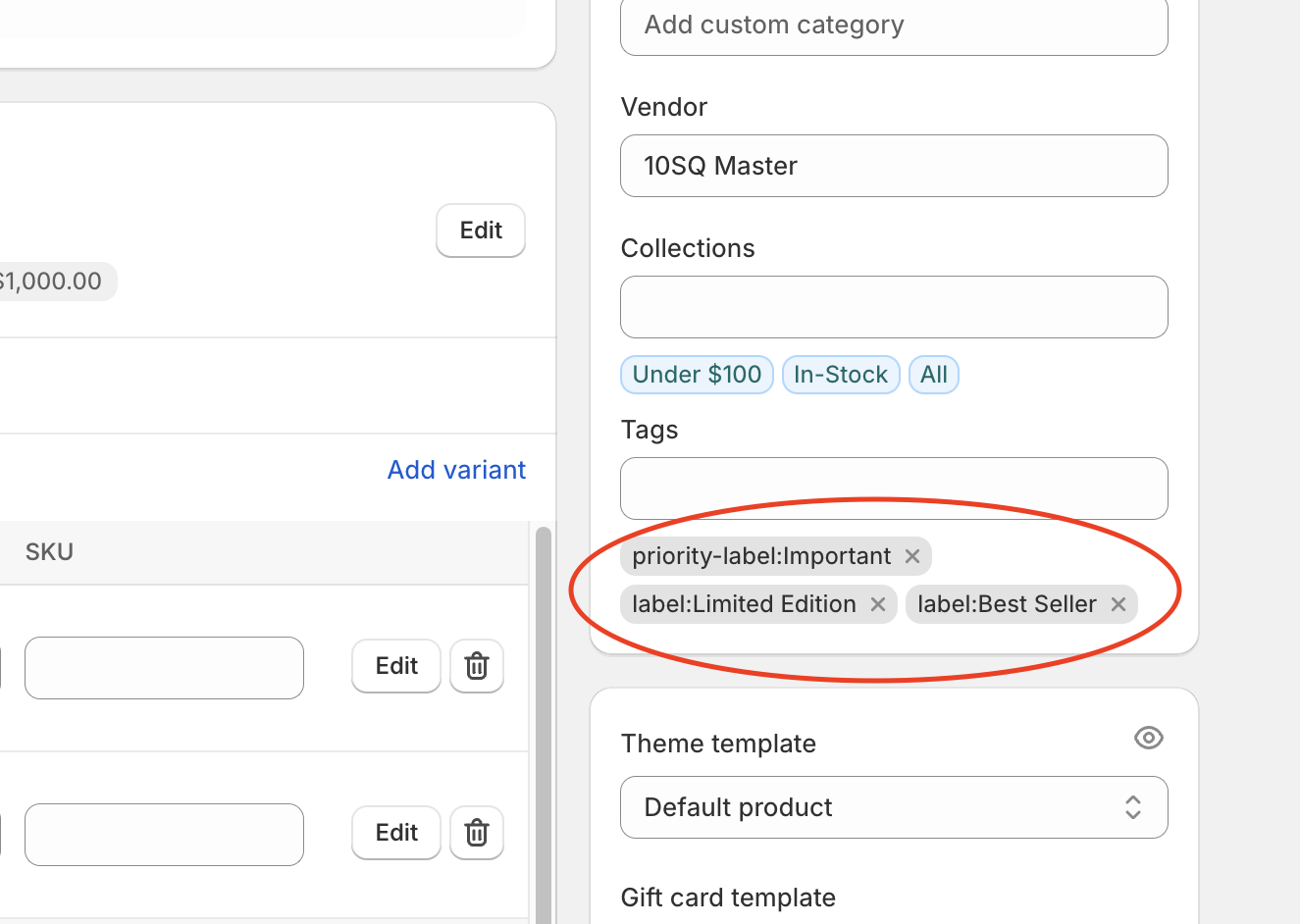
- For a Regular Label, enter
-
Save Changes: Click 'Save' to apply the new tags to your product.
How to Display Labels on the Storefront
Part 1: Product Cards Enable labels in the theme settings to show them on product cards.
Part 2: Product Page Add a Product Tags block in the product template to display labels on individual product pages.
Product Cards
To show labels on your product cards within your Shopify storefront, follow these steps:
-
Access Theme Settings: In your Shopify admin, navigate to the theme you are using and click on 'Customize'.
-
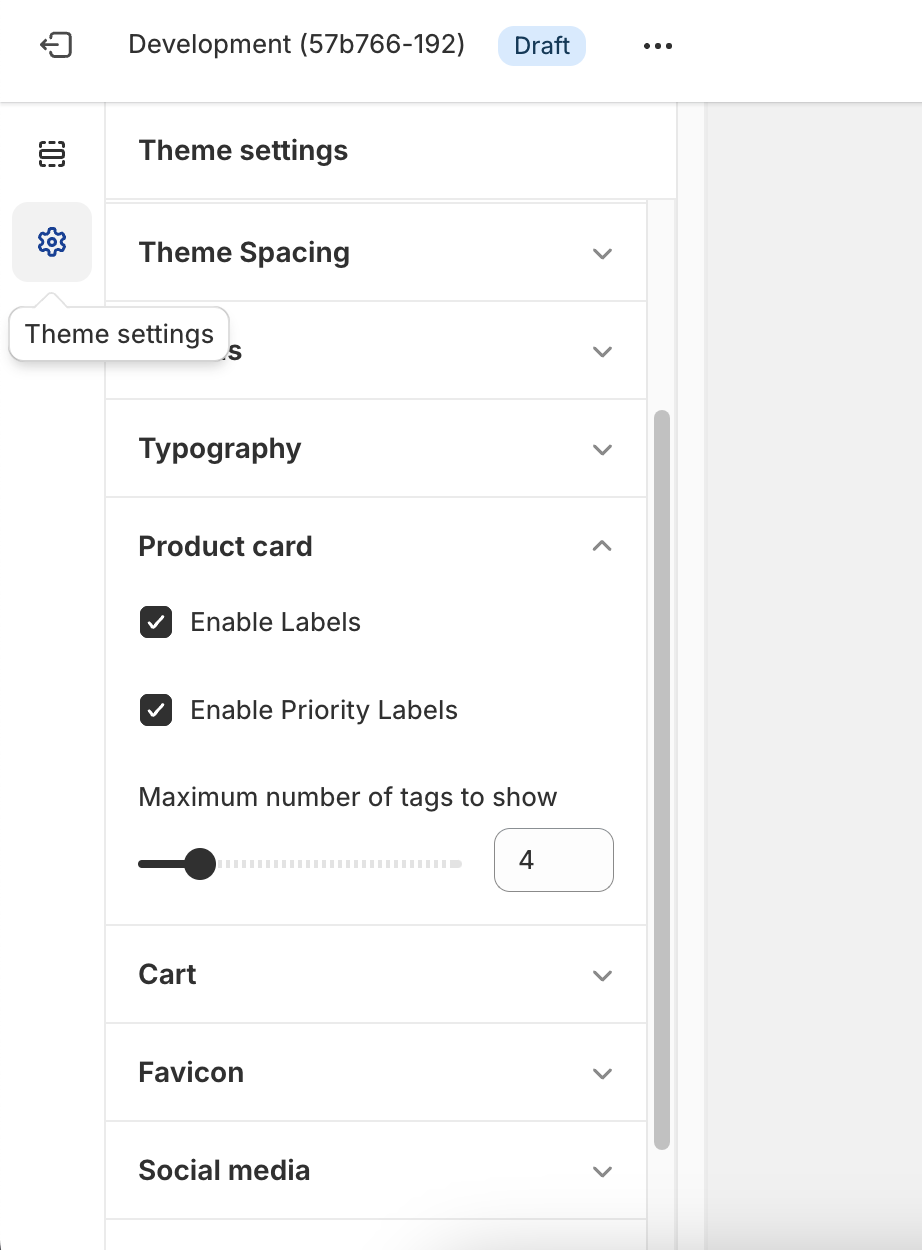
Product Card Settings: Scroll down to the 'Product card' section within your theme settings.
-
Enable Labels:
- Check the box next to 'Enable Labels' to display regular labels.
- Check the box next to 'Enable Priority Labels' to ensure priority labels are also displayed.
-
Set Maximum Tags to Display: Adjust the 'Maximum number of tags to show' slider to control how many labels appear on the product cards.
Don't forget to save your changes to update your storefront.
| Example theme settings |
|---|
 |
Product Pages
To ensure your product labels are visible on the product page, follow these steps:
-
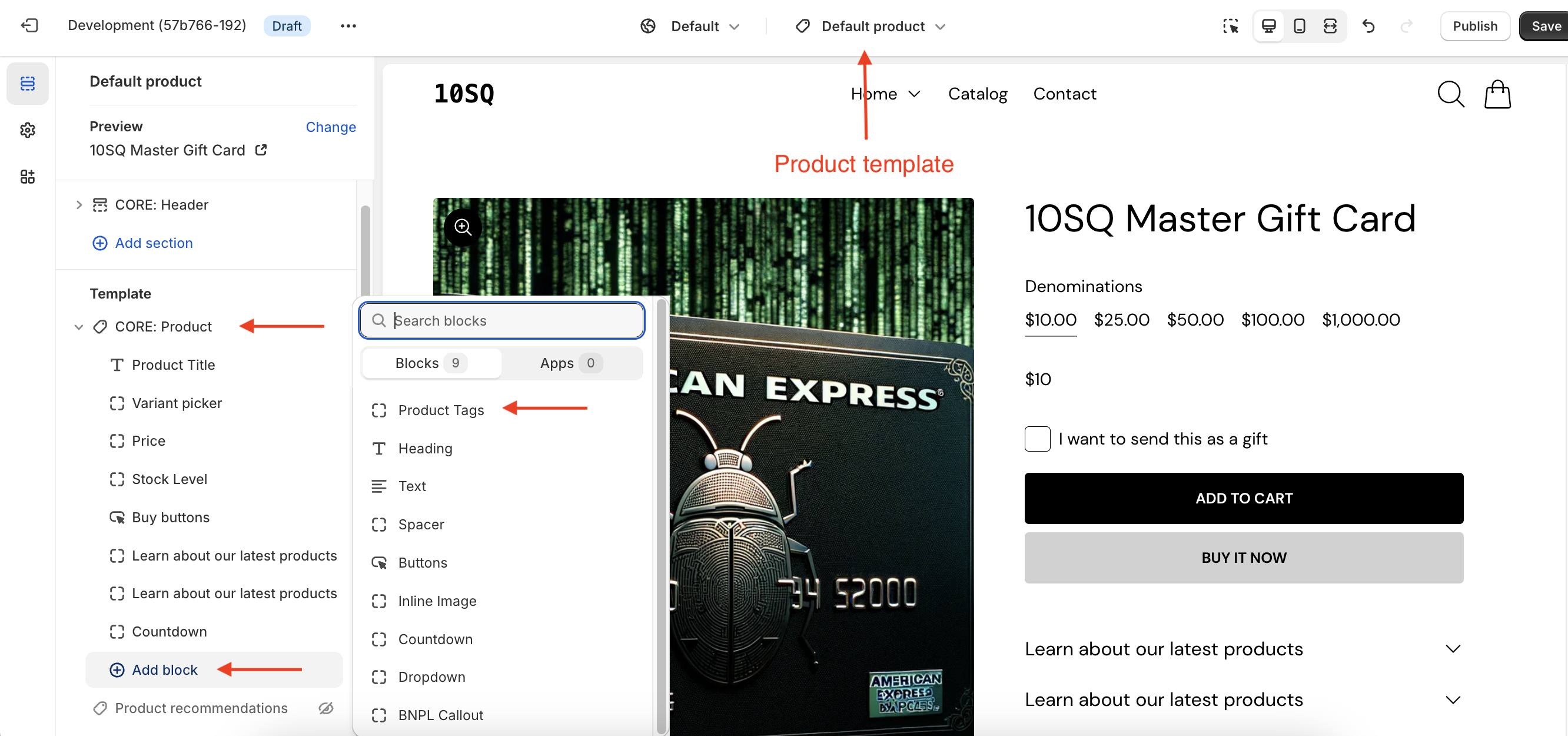
Edit Product Template: In your Shopify admin, go to 'Online Store' > 'Themes'. Find your current theme and click on 'Customize'. Navigate to the 'Default product' or the specific product template you want to edit.
-
Add Product Tags Block: In the 'CORE: Product' section of the sidebar, click 'Add block' and select 'Product Tags'.
| Example settings |
|---|
 |
- Configure Tag Display: After adding the Product Tags block, you can set the 'Maximum number of tags to show' to control how many tags are displayed on the product page.
| Example settings |
|---|
 |
Remember to click 'Save' to apply the changes to your theme.