Callout Product
Setting Up a Dummy Product
Creating a dummy product in your Shopify Plus store can be useful to assist with merchandising within your collection pages. Setting up a dummy product is a straightforward task. Follow these simple steps to set up a dummy product correctly:
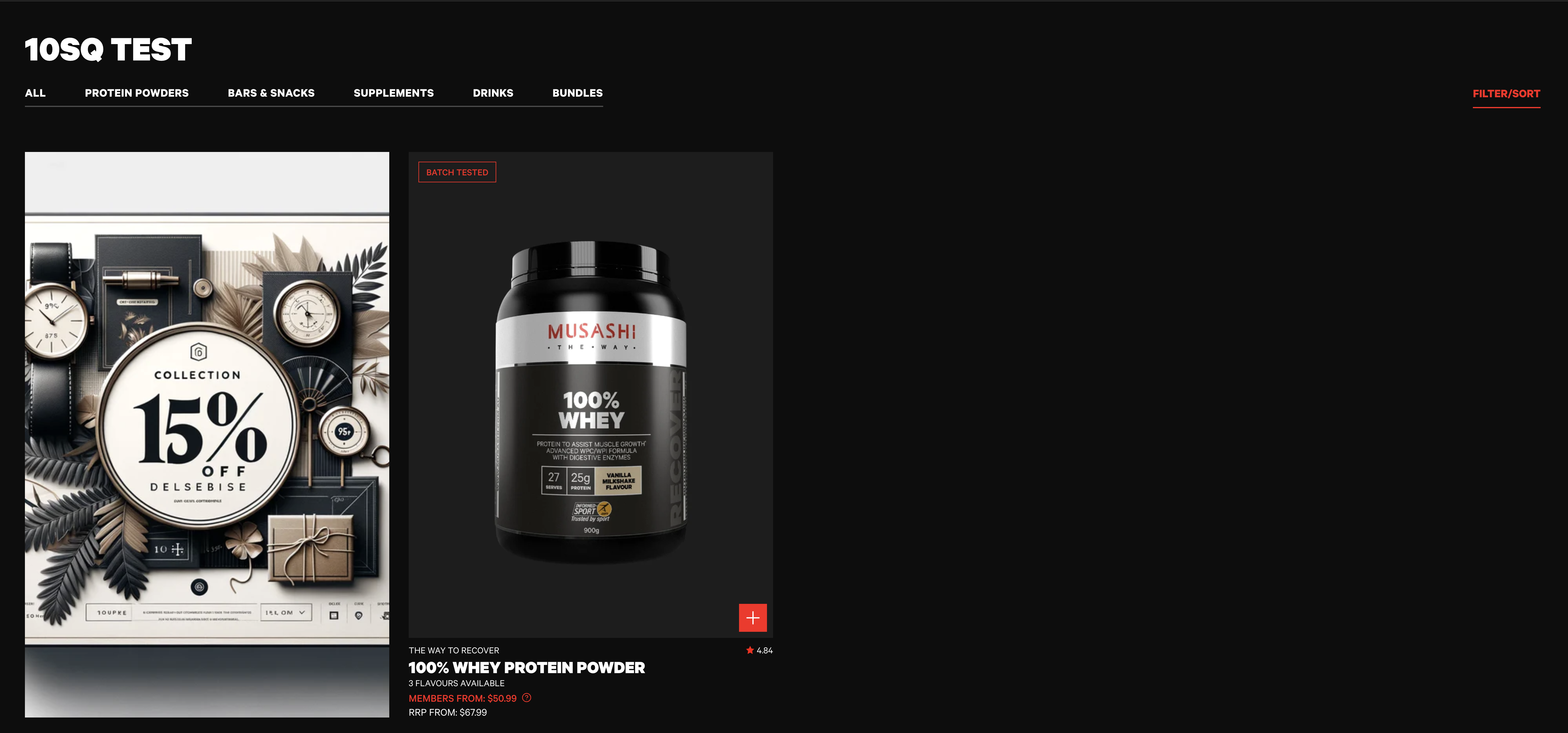 |
|---|
| Example Offer |
Product Setup
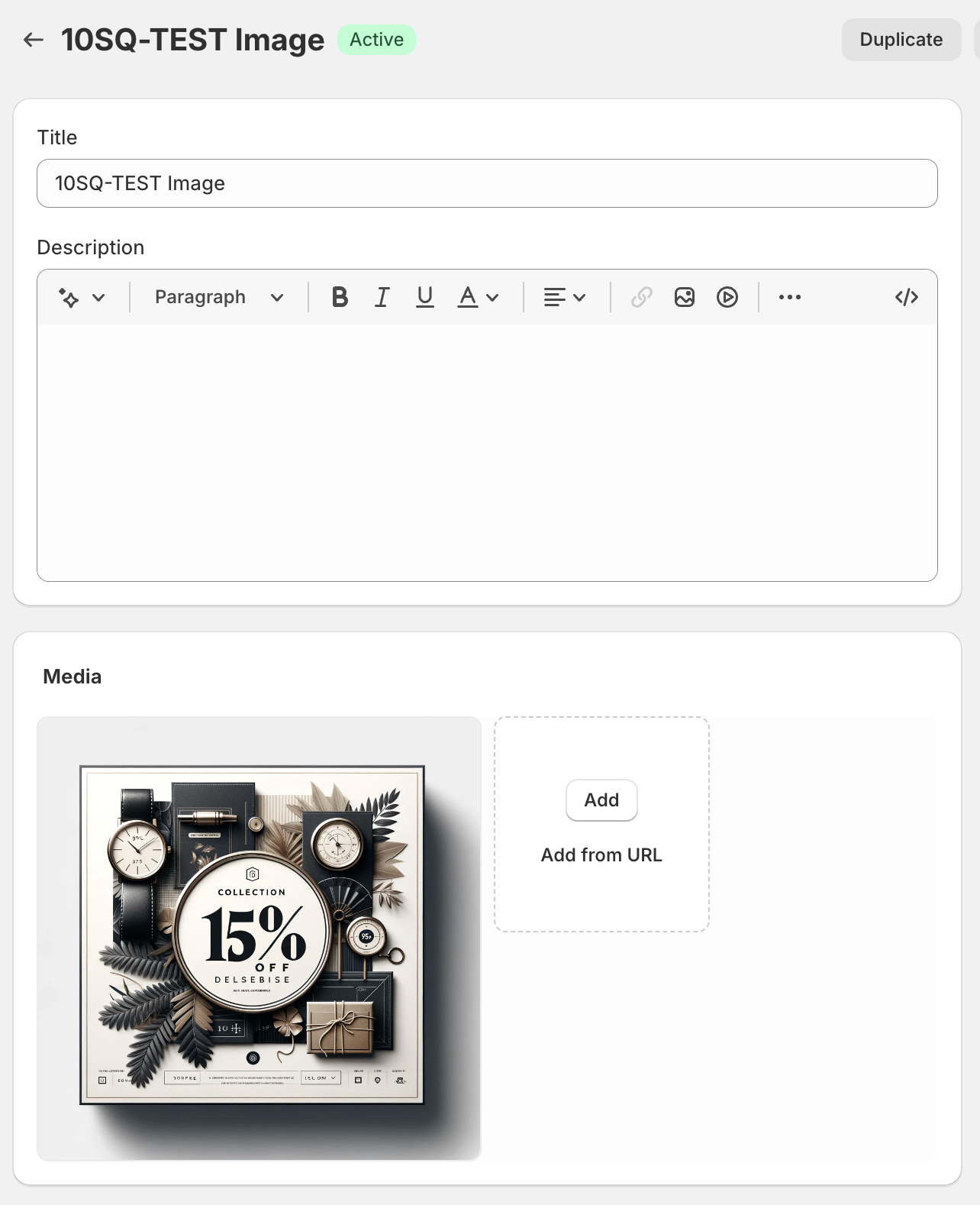
Create a product as if it was any other product. Apply a photo or video to the product. This will be pulled through within your collection.
 |
|---|
| Product Setup |
Configure Sales Channels
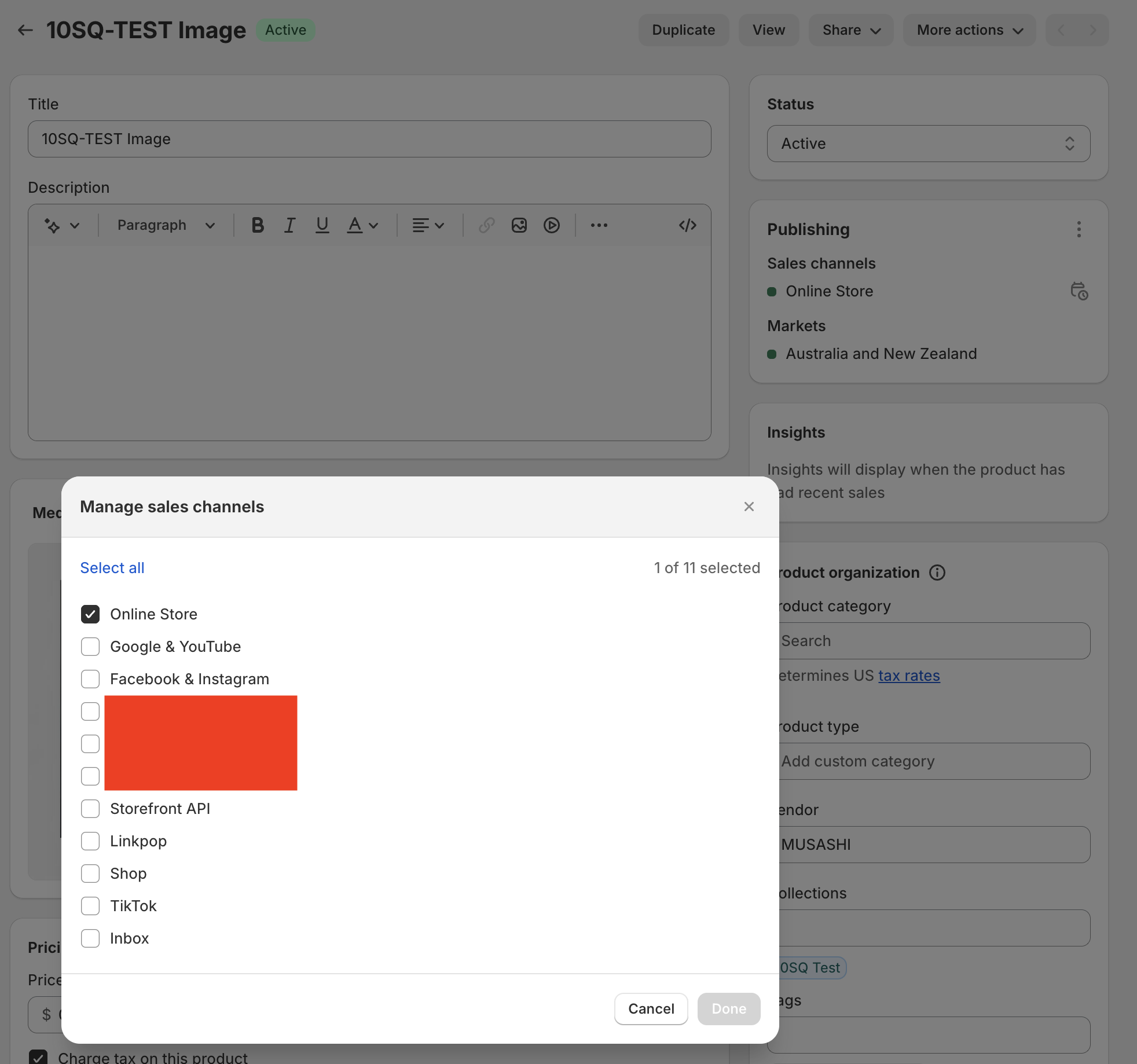
Ensure your product is only listed on the "Online Store" sales channel.
 |
|---|
| Sales Channels Setup |
Tagging Your Product
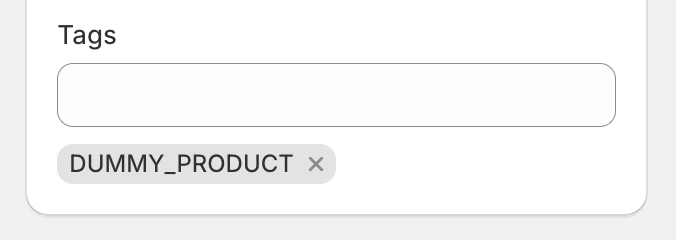
When creating your product, make sure to include the tag DUMMY_PRODUCT. This tag will help you identify and manage the dummy product within your store's inventory system.
 |
|---|
| Tags: DUMMY_PRODUCT |
Making the Product Link Clickable
If you want your dummy product to direct to a specific page when clicked, you can set up a clickable link. Assign your desired URL to the metafield DUMMY_URL. This link could lead to a hidden page for internal use or to more information for those with access.
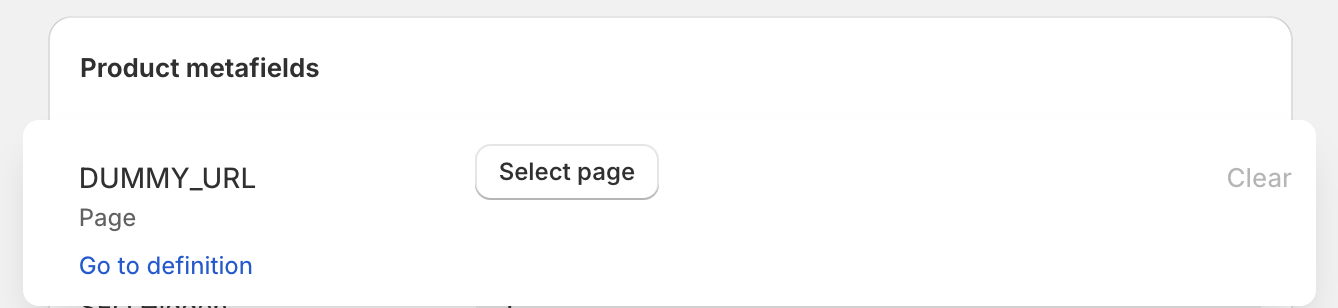 |
|---|
| Configure page url |
Hide from Search Results
It's crucial to ensure that your dummy product is not visible in search engine results, maintaining the integrity of your SEO and the user experience on your site. To achieve this, set the SEO hidden attribute to 1. This action effectively hides the product from being indexed by search engines, ensuring that it doesn't appear in search results.
 |
|---|
| Please ensure that the 'SEO Hidden' setting is configured to '1' |
Place your product within a collection
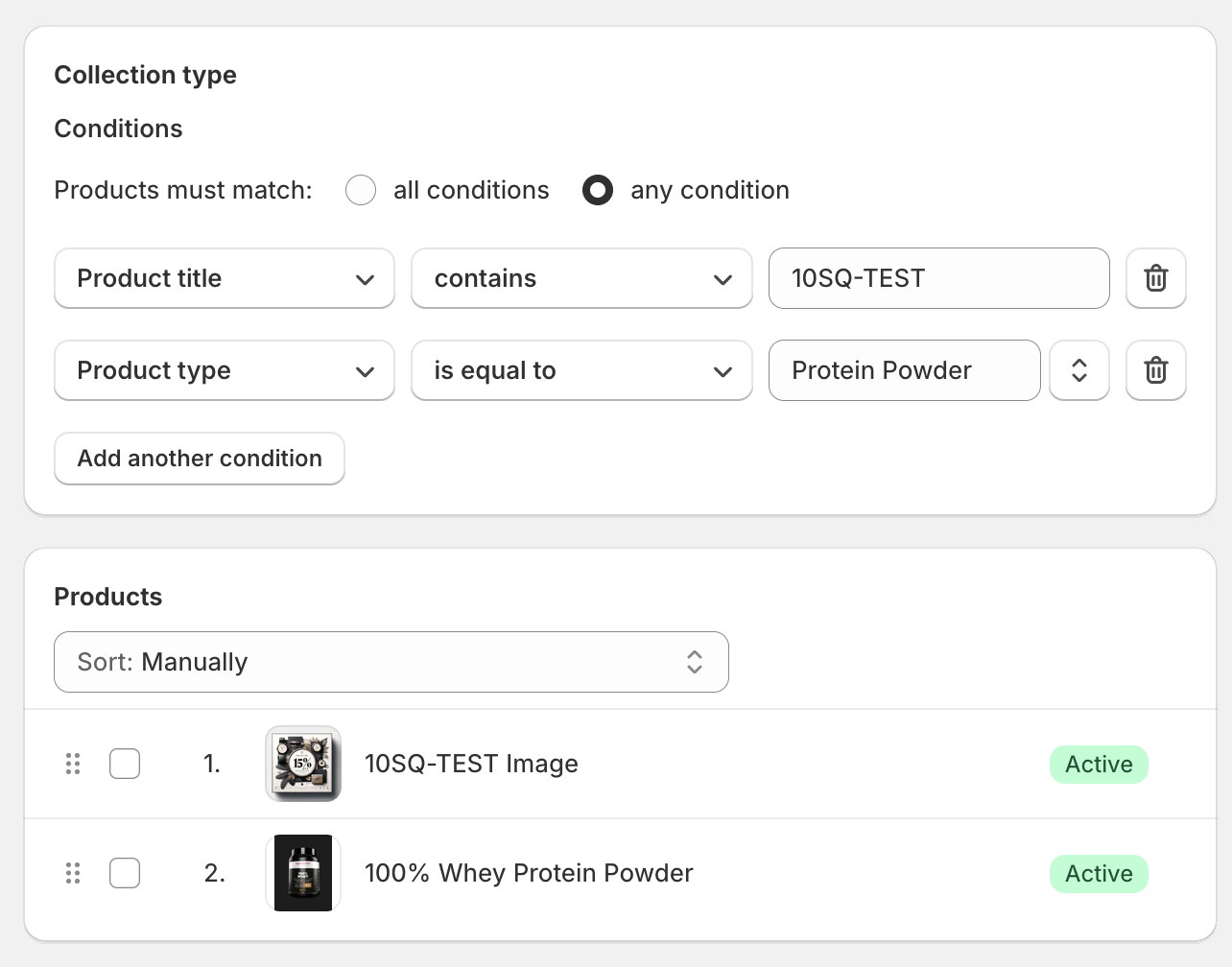
Either adjust your dummy product's tags or attributes, so that it is pulled into an existing collection, or adjust the collections conditions so that it is pulled through into the collection. Then use "Manual Ordering" to specify the offers position,
 |
|---|
| Collection Setup |